13 May
How to Set Up a Google Business Profile
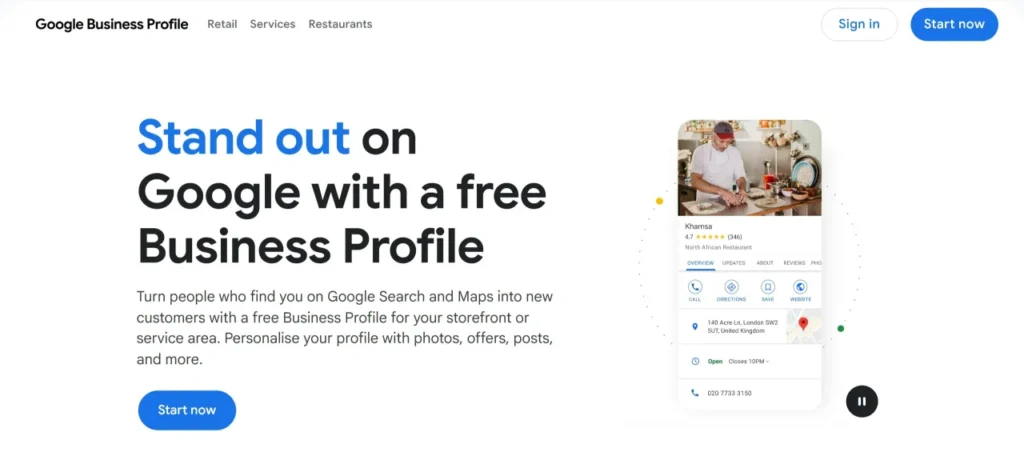
Step 1: Go to Google Business Profile
Go to Google and search: https://business.google.com/en-all/business-profile/
Google Business Profile
Then click Start now.
You can also start from Google’s official Business Profile page. Google explains that businesses can create a free profile to appear on Google Search and Maps.
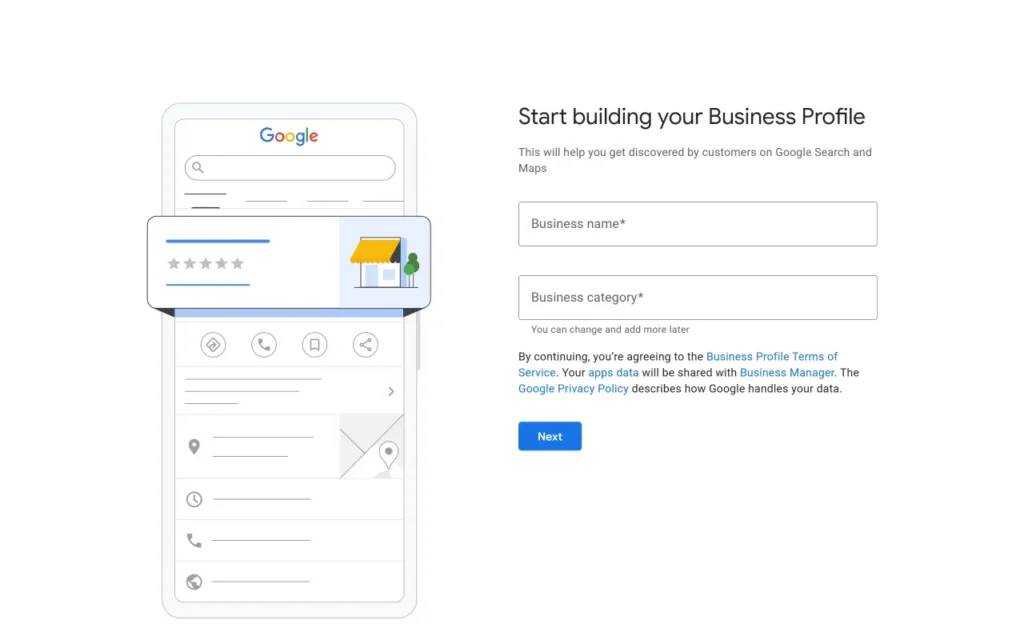
Step 2: Enter Your Business Name and Category
Next, enter your business name and choose your business category.
For example, if you are creating a profile for a salon, your category may be:
- Beauty salon
- Hair salon
- Nail salon
- Barber shop
Choose the category that best describes your main business. Do not choose random categories just because they have keywords.
Important: Your business name should be your real business name. Do not add extra keywords only to rank higher.
Good example:
Glow Beauty Salon
Bad example:
Glow Beauty Salon Best Hair Cutting Hair Coloring Bridal Makeup Colombo Cheap Salon
Google’s guidelines say your business information should accurately represent your real business, and following the guidelines helps avoid issues such as changes to your information or removal from Google.
Step 3: Check Whether Your Business Already Exists
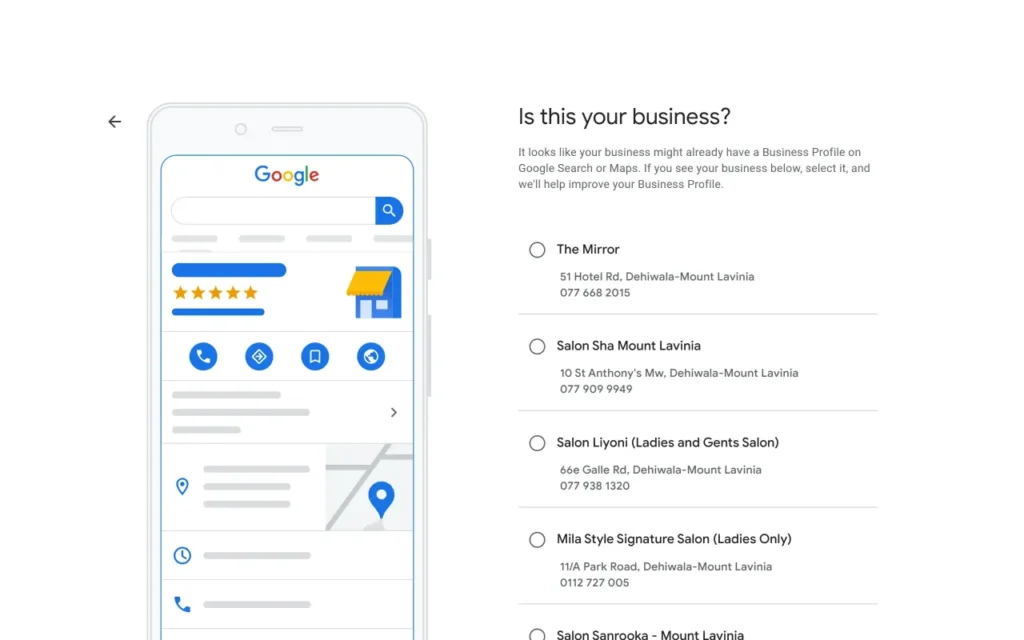
Google may show a screen asking:
“Is this your business?”
This happens when Google finds similar businesses already listed on Search or Maps.
If your business is already listed, select it and continue with the claim process.
If none of the results are your business, continue creating a new profile.
Google also provides an official process to request ownership if someone else may already manage the Business Profile.
Step 4: Choose Whether Customers Can Visit Your Location
Google will ask whether you want to add a location customers can visit, like a store or office.
Choose Yes if customers visit your business location.
Examples:
- Salon
- Restaurant
- Clinic
- Hotel
- Retail shop
- Office
Choose No if you visit customers or provide services without customers visiting your location.
Examples:
- Plumber
- Electrician
- Cleaning service
- Home repair service
- Digital agency
- Mobile service provider
This is important because your address and service-area setup must match how your business actually operates.
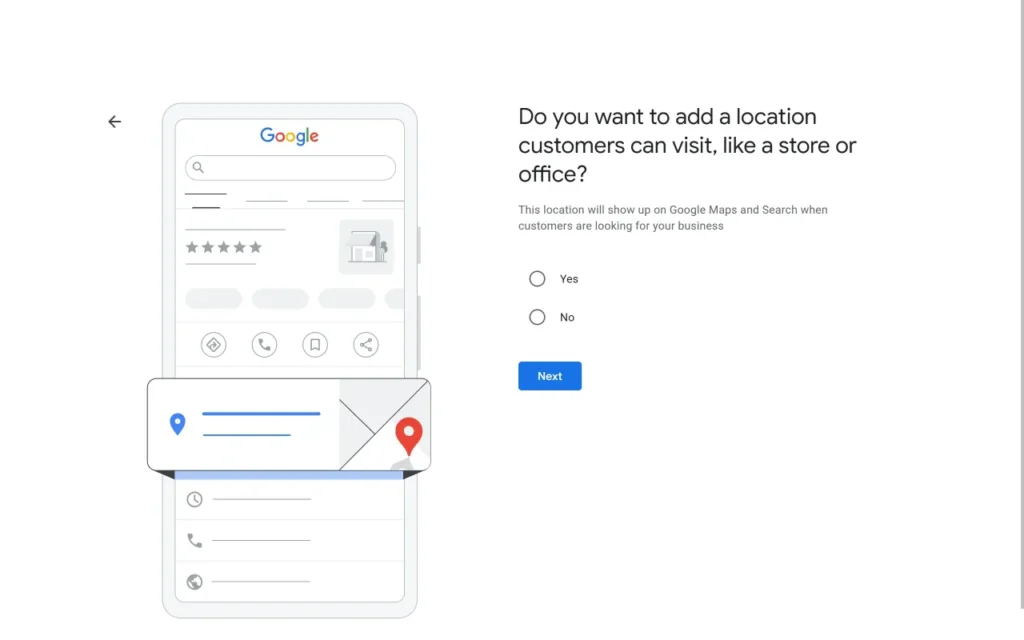
Step 4: Choose Whether Customers Can Visit Your Location
Google will ask whether you want to add a location customers can visit, like a store or office.
Choose Yes if customers visit your business location.
Examples:
- Salon
- Restaurant
- Clinic
- Hotel
- Retail shop
- Office
Choose No if you visit customers or provide services without customers visiting your location.
Examples:
- Plumber
- Electrician
- Cleaning service
- Home repair service
- Digital agency
- Mobile service provider
This is important because your address and service-area setup must match how your business actually operates.
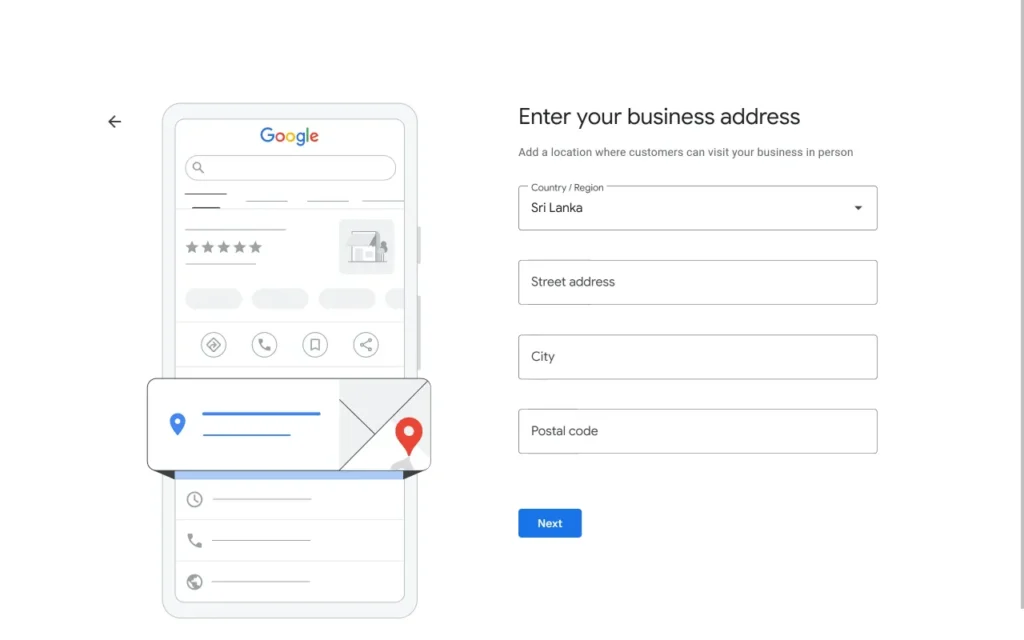
Step 5: Add Your Business Address
If customers can visit your business, enter your correct business address.
Add:
- Country/region
- Street address
- City
- Postal code
Make sure the address is accurate because Google may use this for verification and map placement.
Google says businesses should enter an address that Google can find and that follows address guidelines.
Step 6: Set Your Exact Map Location
After entering your address, Google may ask you to position the map marker.
Drag and zoom the map until the red marker is on the exact location of your business.
This matters because customers may use Google Maps directions to visit you. If the map pin is wrong, customers may go to the wrong place.
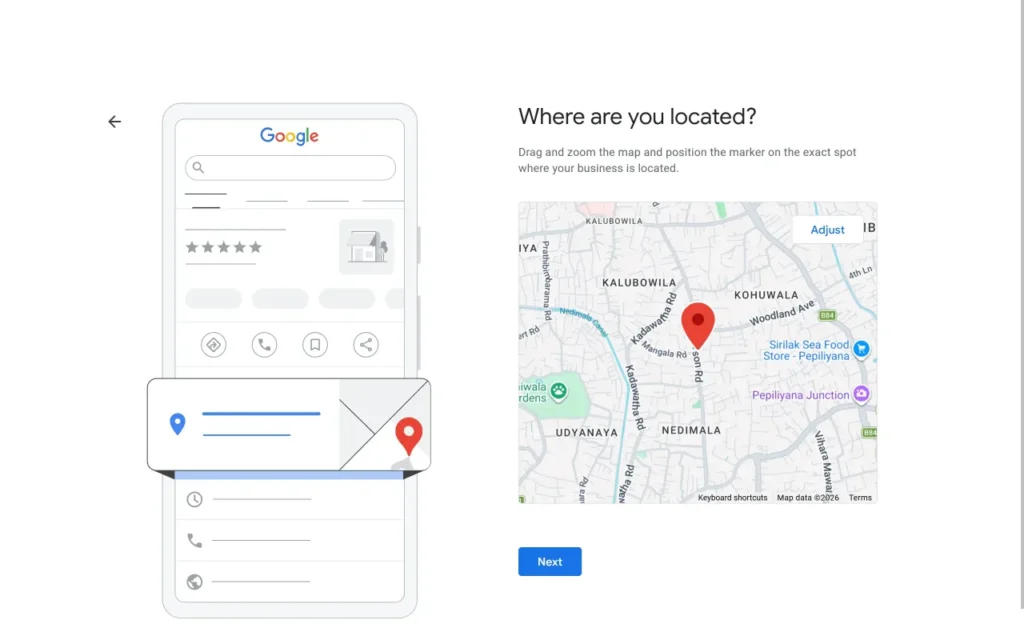
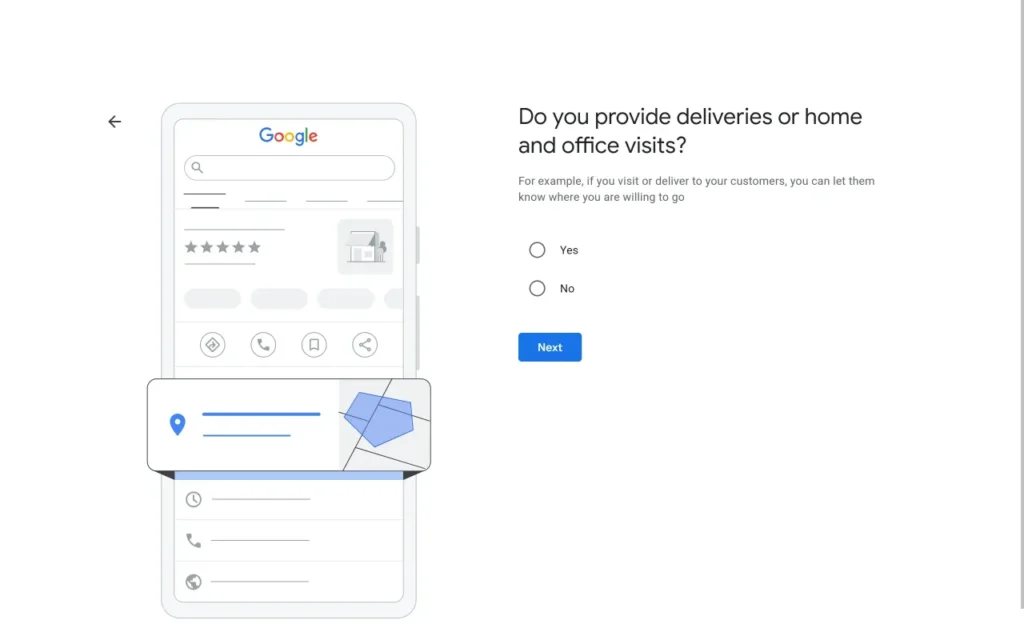
Step 7: Choose Whether You Provide Deliveries or Home/Office Visits
Google may ask:
“Do you provide deliveries or home and office visits?”
Choose Yes if you visit customers, deliver products, or serve customers outside your business location.
Examples:
- Salon offering home visits
- Restaurant offering delivery
- Cleaning service
- Repair service
- Interior design company
- Digital agency serving clients remotely
Choose No if customers only visit your physical location.
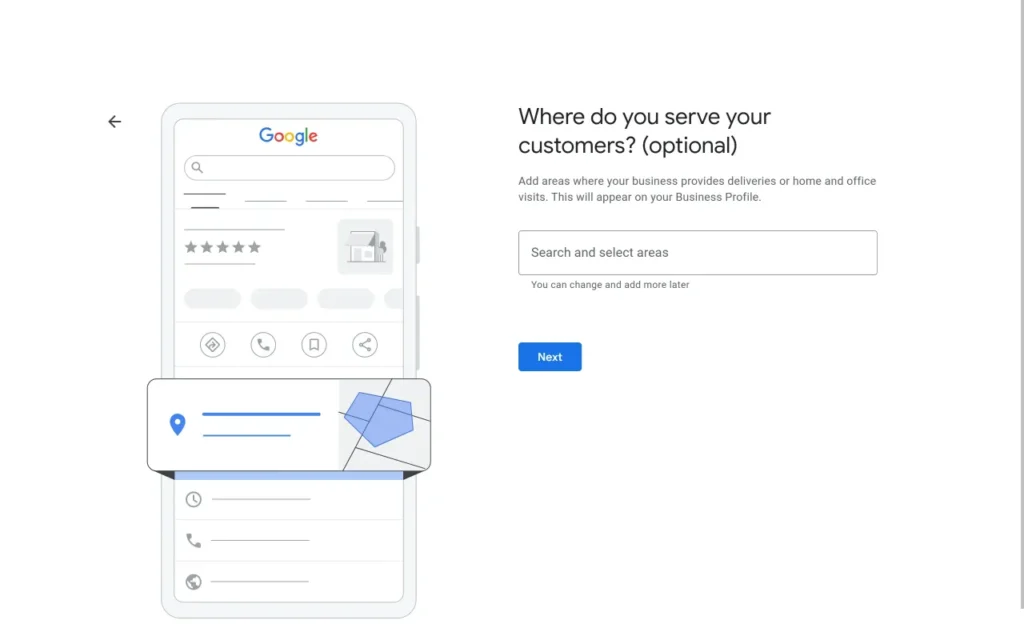
Step 8: Add Your Service Areas
If you serve customers outside your physical location, add the areas where you provide services.
Examples:
For a salon:
- Colombo
- Dehiwala
- Mount Lavinia
- Nugegoda
- Maharagama
For a general service business:
- Colombo
- Kandy
- Gampaha
- Negombo
- Kurunegala
Do not add areas you cannot realistically serve. Keep it accurate.
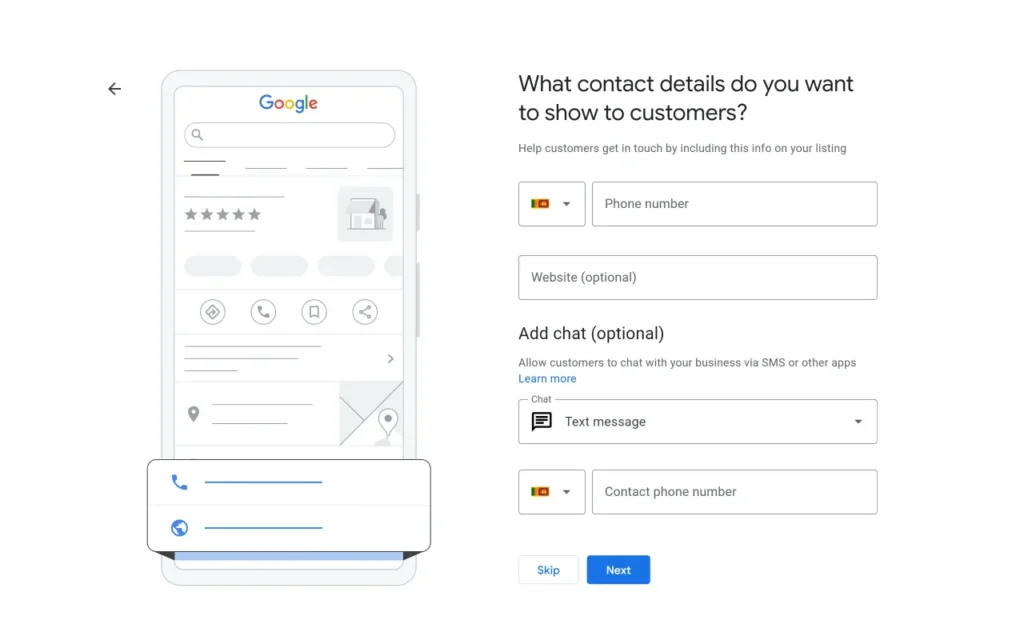
Step 9: Add Contact Details
Next, add your phone number and website.
Your contact details should be correct because customers may call you directly from Google.
Add:
- Main business phone number
- Website URL
- Optional chat/contact option
Use the same phone number and website across your website, Facebook page, Instagram, LinkedIn, directories, and other platforms. This helps keep your business information consistent.
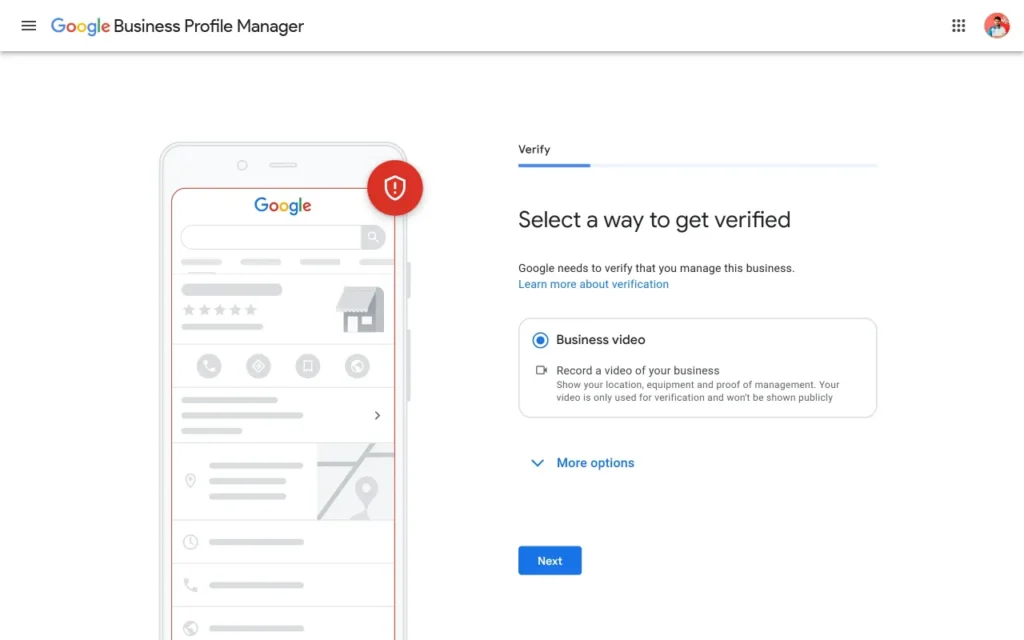
Step 10: Verify Your Google Business Profile
Verification is one of the most important steps.
Google needs to confirm that you actually manage the business. Google explains that businesses must verify so they can control how the profile appears on Google.
Verification methods may include:
- Business video
- Phone
- SMS
- Live video call
- Postcard/mail
Google decides which verification options are available for your business. You usually cannot manually choose any method you want.
For video verification, Google says the video should show key information about your business and helps confirm that you manage or represent the business.
For a salon, the video may need to show:
- Shopfront or business signboard
- Business location
- Salon chairs/equipment
- Products/tools used
- Proof that you manage the business
- Access to staff-only or owner-only areas
Step 11: Manage Your Business Profile
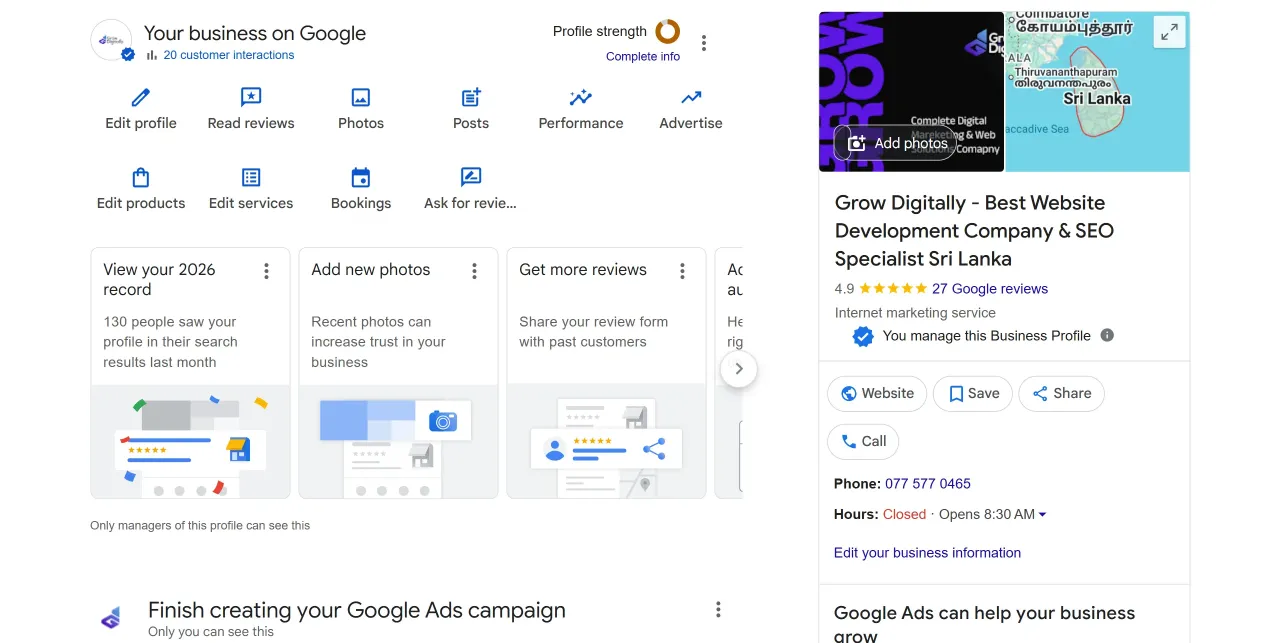
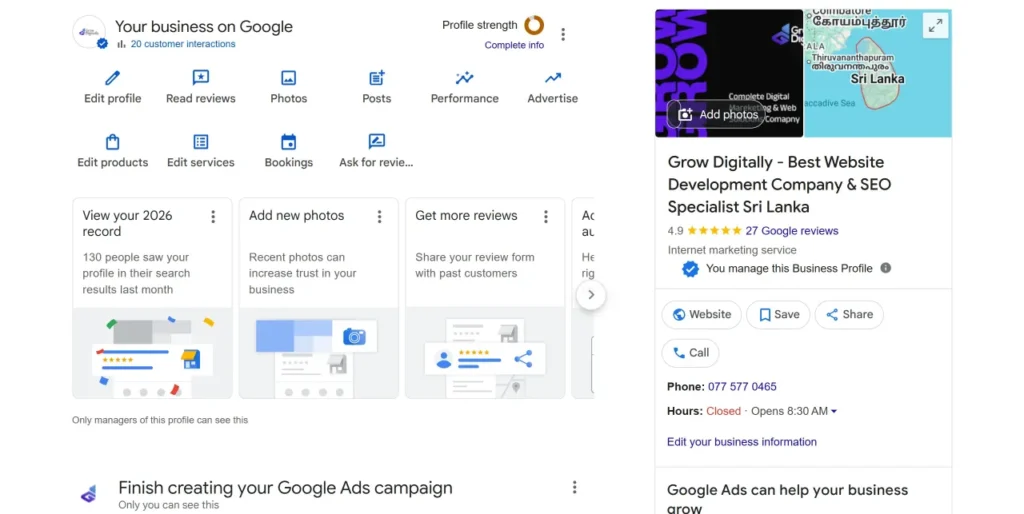
After your profile is created, you can manage it directly from Google Search.
You may see options like:
- Edit profile
- Read reviews
- Photos
- Posts
- Performance
- Advertise
- Edit products
- Edit services
- Bookings
- Ask for reviews
This is your main control panel for your Google Business Profile.
Step 12: Optimize Your Business Information
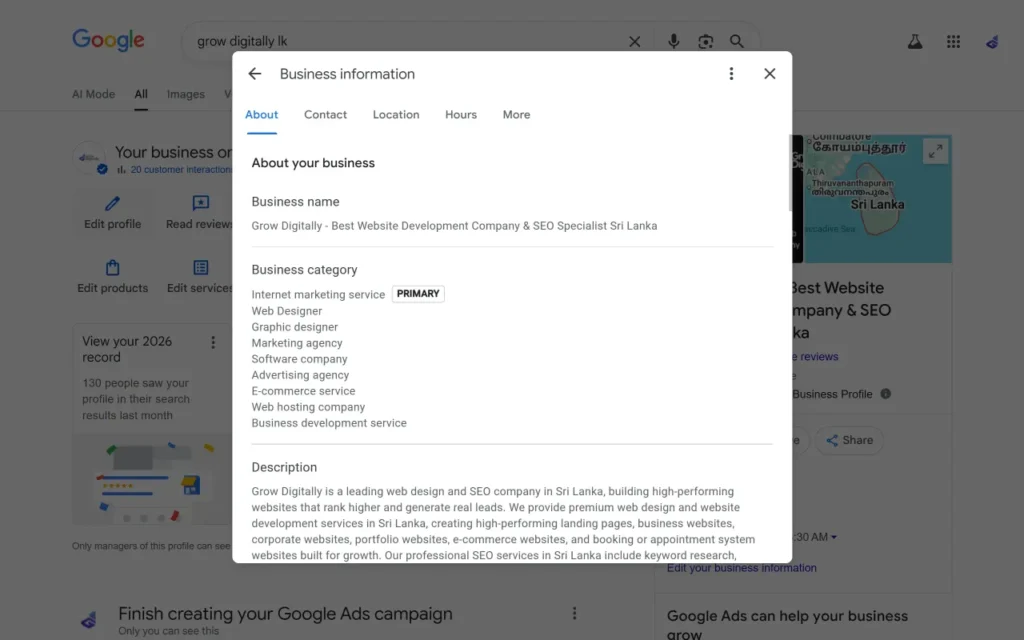
Creating the profile is not enough. You need to complete and optimize it.
Update these sections:
- Business name
- Business category
- Business description
- Opening hours
- Phone number
- Website
- Services
- Products
- Photos
- Logo
- Cover image
- Social media links
- Booking links, if relevant
Google says profile edits can include details like business name, category, hours, contact information, photos, and other business details. Google may review changes before they appear live.
How to Write a Good Business Description
Your description should clearly explain what your business does, who you serve, and where you operate.
For a salon:
Example:
Glow Beauty Salon provides professional haircuts, hair coloring, bridal makeup, nail care, and beauty treatments for customers in Colombo. Our team focuses on friendly service, clean facilities, and quality beauty care for everyday styling, special events, and bridal occasions.
For a service business:
Example:
ABC Solutions provides professional services for local businesses, helping customers improve their operations with reliable support, clear communication, and practical solutions. We work with individuals, small businesses, and growing companies that need trusted service and long-term support.
Keep it simple. Do not overfill the description with keywords.
What Photos Should You Add?
Photos build trust before a customer contacts you.
Add:
- Logo
- Cover photo
- Exterior photo
- Interior photo
- Team photos
- Product photos
- Service photos
- Before/after photos
- Customer experience photos
- Work process photos
For a salon, add:
- Front view of the salon
- Salon chairs
- Hair styling area
- Nail area
- Makeup area
- Team photos
- Real customer results, with permission
What Services Should You Add?
Add your services clearly.
For a salon, examples:
- Haircut
- Hair coloring
- Bridal makeup
- Nail care
- Facial treatments
- Hair treatment
- Eyebrow threading
- Party makeup
For each service, add a short description where possible.
Example:
Hair Coloring
Professional hair coloring services including root touch-ups, full color, highlights, and custom color styling.
How to Get Reviews
After your profile is live, ask real customers to leave honest reviews.
Do not buy fake reviews. Do not ask people who have never used your service to review you.
Good review request message:
Hi [Name], thank you for choosing us. If you had a good experience, could you please leave us a quick Google review? It helps other customers find and trust our business.
Google’s Business Profile Help Center includes review management, tips to get more reviews, and reporting options for inappropriate reviews.
Common Google Business Profile Mistakes
Avoid these mistakes:
- Adding keywords into the business name
- Choosing the wrong category
- Adding an address customers cannot visit
- Creating duplicate profiles
- Using fake reviews
- Uploading low-quality photos
- Not adding services
- Not updating business hours
- Using different phone numbers across platforms
- Ignoring customer reviews
- Creating the profile and never updating it
Final Google Business Profile Checklist
Before you finish, check this:
- Business name is correct
- Main category is accurate
- Address or service area is correct
- Phone number works
- Website URL is correct
- Opening hours are updated
- Business description is complete
- Services/products are added
- Logo and cover image are uploaded
- Real photos are added
- Verification is completed
- Review link is ready
- Profile appears correctly on Google Search and Maps
Need Help Setting Up Your Google Business Profile?
Setting up a Google Business Profile is simple, but setting it up properly for local visibility takes strategy.
At GrowDigitally.lk, we help businesses set up, verify, and optimize their Google Business Profiles, websites, and SEO foundations so customers can find them more easily on Google.
Send us a message if you want your business to appear better on Google Search and Maps.
We also provide amazing web design and SEO services with affordable web design pricing packages. Our team includes some of the best web developers and SEO specialists in Sri Lanka, ready to help businesses build a strong online presence and grow through Google.
For anything related to web design, SEO, or digital growth, reach out to GrowDigitally.lk.
Google Business Profile FAQs
What is a Google Business Profile?
A Google Business Profile is a free business listing that helps your business appear on Google Search and Google Maps. It allows customers to quickly find your business name, phone number, website, location, opening hours, photos, reviews, services, products, and updates.
Why does my business need a Google Business Profile?
If customers search for your business, service, or location on Google and your business does not appear properly, you may lose leads before they even visit your website. A Google Business Profile helps customers find, trust, and contact your business faster.
Is Google Business Profile free?
Yes. Google Business Profile is free to create and use. Businesses can create or claim a profile and manage important business information directly through Google.
Where does a Google Business Profile appear?
A Google Business Profile can appear on Google Search and Google Maps when people search for your business name, service, category, or nearby businesses.
What information can I add to a Google Business Profile?
You can add important business details such as:
Business name
Business category
Phone number
Website
Business address or service area
Opening hours
Photos
Reviews
Services
Products
Posts and updates
Who should create a Google Business Profile?
Any business that serves customers directly should create a Google Business Profile. This includes businesses with a physical location and service-area businesses that visit or deliver to customers.
What types of businesses can use Google Business Profile?
Google Business Profile is useful for many business types, including:
Salons
Restaurants
Hotels
Clinics
Retail shops
Repair services
Construction companies
Interior designers
Digital agencies
Tour operators
Service businesses
Local stores
Education institutes
Can service businesses create a Google Business Profile?
Yes. Service businesses can create a Google Business Profile even if customers do not visit a physical shop or office. Instead of showing a public address, they can add service areas where they serve customers.
Do I need to verify my Google Business Profile?
Yes. Verification is important because Google needs to confirm that you manage the business. After verification, you can manage how your business appears on Google Search and Maps.
Can I optimize my Google Business Profile after creating it?
Yes. After creating your profile, you should optimize it by adding accurate business information, services, photos, opening hours, posts, and real customer reviews. A complete profile looks more trustworthy and can help customers decide to contact you.
A Sri Lankan enterprise IT company built around engineers who operate the systems they design.